Bike Leasing Widget Custom Button
1) States & Templating
The element has two states, defined via <template> slots:
- approximation – The user has not yet entered data. Default assumptions are displayed in the preview.
- calculation – The user has already entered data (e.g., gross income/tax class). The individual calculation is displayed in the results.
You can specify a template for each state, containing what you want to display respectively:
<sf-product-leasing>
  <template slot="approximation">
    <!-- Your Template Content -->
  </template>
  <template slot="calculation">
    <!-- Your Template Content -->
  </template>
</sf-product-leasing>
There are multiple values available to insert into the templates, see the next section for details.
Once you include any template inside the <sf-product-leasing> element they will be used instead of the default design even if they're empty.
2) Slots
To display values calculated from our widget in your template we provide the following placeholders:
rate– Monthly net leasing rate, with currency (e.g., “€83”)savings– Savings compared to buying, with currency (e.g., “€123.45”)savings-percent– Percentage savings (e.g., “14.3%”)price– Current purchase price, with currency (e.g., “€4,500”)leasing-price– Total leasing price (sum of rates, without takeover), with currency (e.g., “€3,000”)duration– Leasing duration in months (e.g., “36”)

3) CTA Detection & Interaction
- The widget automatically detects exactly one CTA element (
<button>or<a>) per template. - If multiple potential CTAs exist or a different element should be clickable, mark the desired element with
data-sf-button. - For buttons, consider using
type="button"to prevent unwanted form submissions. - For non-button elements (e.g.,
<div>), also adddata-sf-buttonto make them clickable.
Some Examples
A Single Button
- HTML
<sf-product-leasing [...]>
  <template slot="approximation">
    <button type="button">Find your individual leasing rate!</button>
  </template>
  <template slot="calculation"><!-- left empty to keep example short --></template>
</sf-product-leasing>

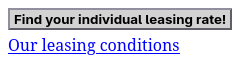
CTA Button and Details Link
The data-sf-button attribute ensures that the button and not the link is used to open the widget. This way you can point the link to e.g. some leasing-related page on your website:
- HTML
<sf-product-leasing [...]>
  <template slot="approximation">
    <button data-sf-button type="button">Find your individual leasing rate!</button>
    <a href="/leasing-conditions">Our leasing conditions</a>
  </template>
  <template slot="calculation"><!-- left empty to keep example short --></template>
</sf-product-leasing>
CTA Button and Details Link
The data-sf-button attribute can also be used on normally non-clickable elements like <div> or <span>:
- HTML
- CSS
<sf-product-leasing [...]>
  <template slot="approximation">
    <div data-sf-button>
      <span>Find your individual leasing rate!</span>
      <span>Clicking anywhere inside here will open the leasing widget</span>
    </div>
  </template>
  <template slot="calculation"><!-- left empty to keep example short --></template>
</sf-product-leasing>
div[data-sf-button] {
  display: flex;
  flex-flow: column;
  gap: 0.5em;

  border: 2px solid red;

  padding: 0.5em;
}

4) Styling
You can use reference all your CSS classes inside the templates. Elements inside the template behave as if they were placed directly on your page.
5) Examples (Platform-Independent)
All CSS in the below examples is assumed to be global, i.e. placed in a <style> tag or included using a <link> tag.
Button beside Text
- HTML
- CSS
<sf-product-leasing [...]>
  <template slot="approximation">
    <div class="column">
      <span>
        Dieses Bike für <slot name="duration"></slot> Monate in Raten von ca. <slot name="rate"></slot> pro Monat leasen.
      </span>
      <button class="custom-btn" type="button">
        Jetzt deinen individuellen Leasingpreis bestimmen!
      </button>
    </div>
  </template>
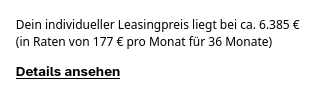
  <template slot="calculation">
    <div class="column" style="gap: 0">
      <span>
        Dein individueller Leasingpreis liegt bei ca. <slot name="leasing-price"></slot>
      </span>
      <span>
        (in Raten von <slot name="rate"></slot> pro Monat für <slot name="duration"></slot> Monate)
      </span>
      <button class="custom-btn" style="margin-top: 1em" type="button">
        Jetzt deinen individuellen Leasingpreis bestimmen!
      </button>
    </div>
  </template>
</sf-product-leasing>
.column {
  display: flex;
  flex-flow: column nowrap;
  gap: 1em;
  padding: 1em;
}

.custom-btn {
  background: transparent;
  border: none;
  width: fit-content;
  text-decoration: underline;
}

Button with Image
- HTML
- CSS
<sf-product-leasing [...]>
  <template slot="approximation">
    <button class="leasing" type="button">
      <img src="/product-image.jpg" alt="Product Image">
      <div>
        <span>Lease this bike for approximately <slot name="rate"></slot> per Month</span>
        <span style="font-weight: bold">Click here for a more accurate calculation</span>
      </div>
    </button>
  </template>
  <template slot="calculation">
    <button class="leasing" type="button">
      <img src="/product-image.jpg" alt="Product Image">
      <div>
        <span>Your leasing rate is <slot name="rate"></slot> per Month</span>
        <span>Leasing this bike for <slot name="duration"></slot> months totals <slot name="leasing-price"></slot></span>
        <span style="font-weight: bold">Click to show details</span>
      </div>
    </button>
  </template>
</sf-product-leasing>
button.leasing {
  display: flex;
  flex-flow: row nowrap;
  gap: 1em;

  background: white;

  border: 2px solid gray;
  border-radius: 10px;

  padding: 0.2em 0.75em;

  > img {
    width: 80px;
  }

  > div {
    display: flex;
    flex-flow: column nowrap;
    justify-content: center;

    text-align: left;
  }
}

