Setup
Introduction
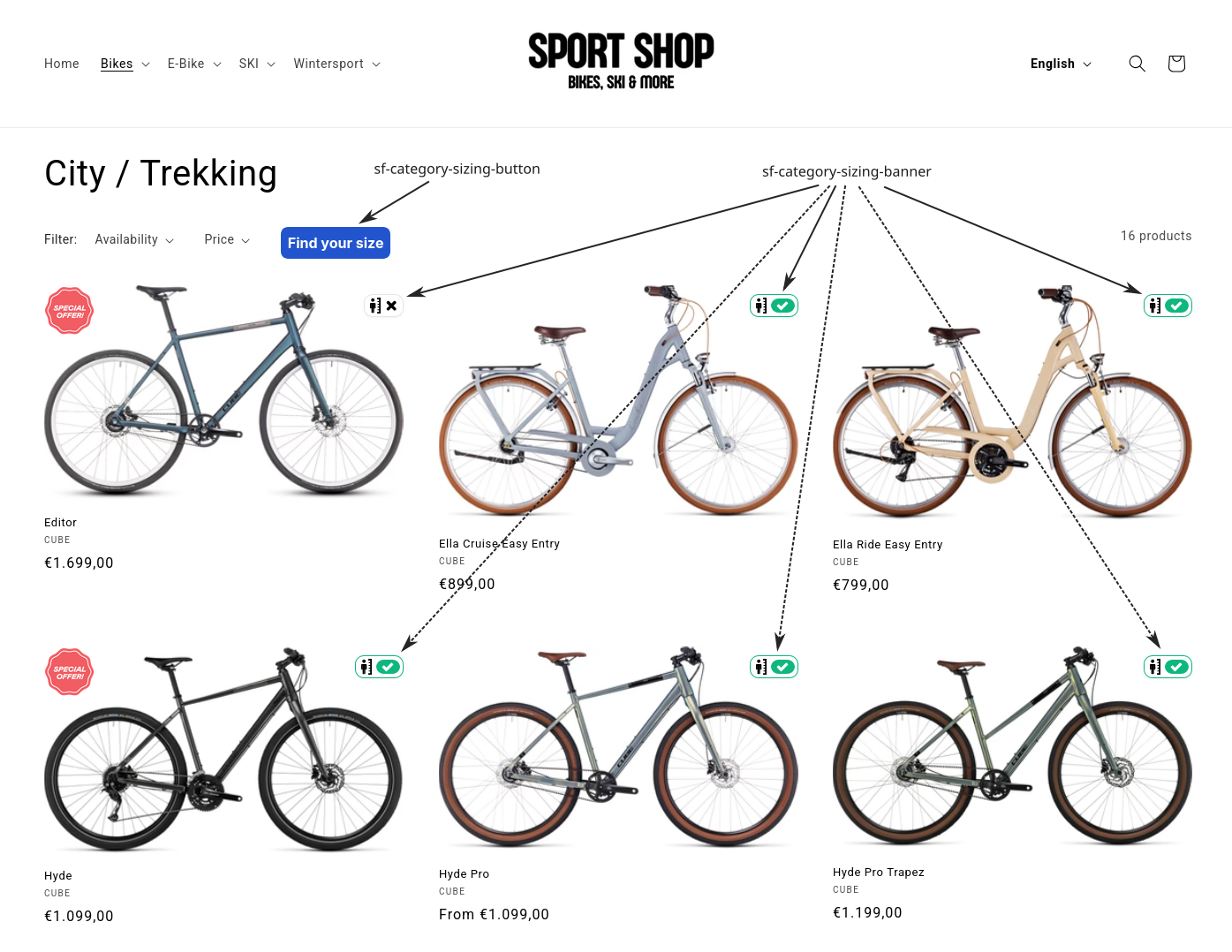
The category sizing consists of two important parts:
- sf-category-sizing-button: The button allows the user to open a widget for entering their body height and other required inputs for sizing. It is only required once on the page.
- sf-category-sizing-banner: The banners display fitting and stock data for each product. Every product needs its own banner.
Adding the Button
Adding the <sf-category-sizing-button> is the simplest part, as it requires no further attributes or content:
- HTML
<sf-category-sizing-button></sf-category-sizing-button>

The color will match the CTA color configured in Smartfit Analytics.
If you want a custom look for your button you can customize it exactly as the <sf-product-sizing> widget, see Custom Sizing Button.
Adding Banners
Banners should be positioned somewhere near the product they correspond to. They also need the following attributes:
- global-id: Takes the EAN/UPC product code of your bike. This should be the code for any of the frame sizes you are selling (e.g., the EAN code for an "XS" frame size). The API will automatically detect the correct model.
- variant-id: A unique product identifier that must match the identifier used in the product feed.
If you're showing a banner on a product with multiple color variants you may specify a comma-separated list of IDs (one for each color) instead of a single one to include all of them in the sizing:
<sf-category-sizing-banner variant-id="1,2,3,4,..." global-id="1,2,3,4,..."></sf-category-sizing-banner>
Default Style
We provide a variety of layouts in the default style to chose from. It can be set using the layout-type attribute.
The global-id and variant-id attributes are represented by [...] in the following snippets to keep them concise.
Layout 0
This is the layout used if no layout-type (or layout-type="0") is specified.
- HTML
<sf-category-sizing-banner [...]></sf-category-sizing-banner>
or
<sf-category-sizing-banner layout-type="0" [...]></sf-category-sizing-banner>
This layout will show all fitting sizes as well as their stock status:



Layout 1
This is the layout used if layout-type="1" is specified.
- HTML
<sf-category-sizing-banner layout-type="1" [...]></sf-category-sizing-banner>
This layout will also show all fitting sizes as well as their stock status, but removes the ticks and crosses to save some space:


Layout 2
This is the layout used if layout-type="2" is specified.
- HTML
<sf-category-sizing-banner layout-type="2" [...]></sf-category-sizing-banner>
This layout only shows if there is at least one fitting size in stock:

Custom Style
You can alternatively completely customize your banners, see Custom Banner.
Specifying the Product Type
To simplify integration, the <sf-category-sizing-button> was designed to automatically determine the product type (e.g. bike, ski) using the global-id and variant-id supplied to the <sf-category-sizing-banner>s on the page.
If you wish to add the category sizing to a mixed product page, consider adding the product-type attribute to the <sf-category-sizing-button> to prevent it from picking up the wrong/unwanted product type:
<sf-category-sizing-button product-type="bike"></sf-category-sizing-button>
Common Issues
No Sizing Button Displayed
Cause: This is usually caused by having an error inside the product feed or banner integration, for example mismatching variant IDs. It may also happen on pages with mixed product types where no definite type can be automatically determined.
Fix: Correct the variant IDs in your feed or on your page, if they don't match. In case of mixed product listings include the product-type attribute as explained above.